
D7versions for Adobe InDesign — Guide
This guide describes the D7versions plugin for Adobe InDesign as implemented in the source tree whose manifest version is 1.5.1. The product name, the manifest name, and the panel label are D7versions. Button and field texts are quoted as the interface sets them.
The rest of the interface follows the language setting. When the language is English, the English quotes apply. The German label for the same control is in parentheses. The panel flyout menu stays English regardless of the language setting.
01
Requirements
Purpose: Check the host values the manifest actually declares before the first launch.
manifest.json and the release copy export/config/manifest-release.json state:
| Manifest field | Value |
|---|---|
name | D7versions |
version | 1.5.1 |
host.app | ID (the UXP host code for Adobe InDesign) |
host.minVersion | 19.4 |
| Panel id | d7versions |
| Panel label | D7versions |
manifestVersion | 5 |
D7versions runs on Windows and macOS. UXP manifest version 5 has no operating-system field (host only names the app and minVersion). Windows and macOS are therefore not listed in manifest.json. No minimum operating-system version is set either.
The plugin requests full local file access (localFileSystem: fullAccess) and may open http, https, and mailto links. License checks and the trial need a network connection. Server addresses live only in configuration and are omitted here.
Expected result: Adobe InDesign must be at least manifest version 19.4. Older hosts do not load the plugin.
Common problems
- The panel is missing because the installed Adobe InDesign version is below
19.4. - A new activation or trial fails without a network connection. A license that is already stored stays valid offline for at most 2 days (
OFFLINE_GRACE_DAYS: 2in the license configuration). The panel does not display that number.
02
Installation
Purpose: Make the D7versions panel available in Adobe InDesign.
This repository does not include an installer or the click path inside the Adobe Marketplace. After the plugin is installed through the normal UXP or Marketplace route:
- Start Adobe InDesign on Windows or macOS (host version
19.4or later, as declared byminVersion). - Open the panel from the menu Plugins > D7versions.
- Dock the panel or leave it floating. The manifest preferred size is 280 × 400 pixels. The minimum is 280 × 150 pixels.
Expected result: The layer-version view appears. With no document open, the list stays empty and the toolbar is still there.
Common problems
- A development copy and a Marketplace copy use different plugin ids (
at.d7design.versionsin the development manifest,fcb60f1fin the release manifest). Settings, language, and the license cache therefore live in separate data folders and do not move across by themselves.
03
First launch and license
Purpose: Open the panel and activate a license or the trial when a protected action asks for one.
- Open Plugins > D7versions. On show, the plugin checks the license in the background and does not open a dialog.
- Click a layer version, click or edit a print version in the list, add a PDF export to the print queue, or choose Create (DE: “Anlegen”) in the wizard. Those actions check the license.
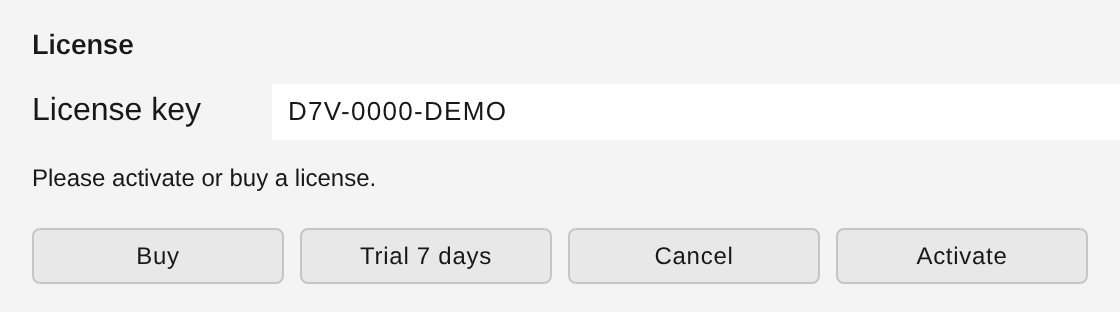
- If no valid license is stored, a dialog opens with the title License (DE: “Lizenz”).
- With no special hint, the message is Please activate or buy a license. (DE: “Bitte Lizenz aktivieren oder erwerben.”).
- Enter a key in License key (DE: “Lizenzkey”). The placeholder is
D7V-.... Activate (DE: “Aktivieren”) sends it. The key must be at least 10 characters, or the dialog shows Please enter a valid license key. (DE: “Bitte einen gueltigen Lizenzkey eingeben.”). - Or choose Trial 7 days (DE: “Demo 7 Tage”). The Adobe ID is read from Adobe InDesign (
userAdobeId). This dialog has no separate email field. The client registers a 7-day trial for that Adobe ID. - Buy (DE: “Kaufen”) opens the purchase link in the browser.
- Cancel (DE: “Abbrechen”) closes the dialog. The protected action does not run.
Creating, editing, deleting, and reordering layer versions, and the PDF-presets dialog, do not check the license at those steps.
Expected result: After a successful activation or trial, the action that opened the dialog continues. Info shows the license type, remaining time, and key.
Common problems
- Adobe ID could not be read. Please sign in to Creative Cloud. (DE: “Adobe-ID konnte nicht gelesen werden. Bitte in der Creative Cloud anmelden.”) when Trial 7 days cannot read an email from Adobe InDesign.
- If the address is not a valid email, the client returns the fixed German sentence
Ungültige Adobe-ID-E-Mail.(not localized). - A trial has already been requested for this Adobe ID. (DE: “Für diese Adobe ID wurde bereits eine Demo angefordert.”).
- This trial is already activated on another device. (DE: “Diese Demo ist bereits auf einem anderen Geraet aktiviert.”).
- Trial registration failed. (DE: “Demo-Registrierung fehlgeschlagen.”) or Activation failed. (DE: “Aktivierung fehlgeschlagen.”).
- A valid license without an export grant shows License again with Please activate or buy a license. The export does not start.
04
Language and flyout
Purpose: Set the interface language and find the panel menu.
Language is under Settings. Until detection finishes, the fallback language is German. Automatic (from InDesign) (DE: “Automatisch (nach InDesign)”) reads the Adobe InDesign locale: if it starts with en, the interface is English; otherwise it is German.
The flyout is always English, in this order:
- Print Queue
- Export Versions
- Import Versions
- Delete Print Versions
- Delete Layer Versions
- Log
- Settings
Expected result: After Save in Settings, the rest of the interface uses the chosen language. The flyout stays English.
Common problems
- Older strings in
module/i18n/strings/menu.json(for example “Export configuration”) are not the flyout labels. The labels you see are the English items frommain.js.
05
Layer versions (main view)
Purpose: Store layer visibility as a named version inside the document and restore it with one click.
Data is stored on the document label d7designTools.d7LayerVersionen. An older label d7designTools.versionen is copied into the new key once, if the new key is still empty. If a saved .indd file has a sibling .json file with the same base name and the label is still empty, that JSON is copied into the label once.
- Open a document in Adobe InDesign.
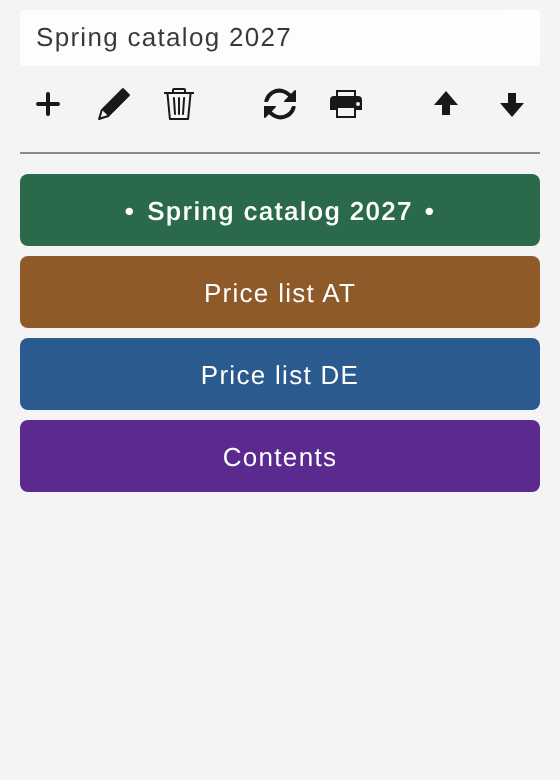
- Check the name field at the top of the panel. It is read-only (accessible name Name) and shows the last selected layer version.
- Create version (DE: “Version erstellen”, new icon) opens the edit view. See chapter 6.
- Click a colored button labeled with the version name. The plugin applies the stored layer visibility. The button is marked active, and the name appears in the name field.
- Edit version (DE: “Version bearbeiten”) opens the editor for the name currently in the field. With an empty field, the click does nothing.
- Delete version (DE: “Version löschen”) deletes that version immediately, with no confirmation.
- Refresh (DE: “Aktualisieren”) closes an open print dialog and reloads layer versions.
- Print version (DE: “Version drucken”) opens the print dialog. If that dialog is already open, the click does nothing.
- Move version up / Move version down (DE: “Version nach oben” / “Version nach unten”) move the selected version in the list.
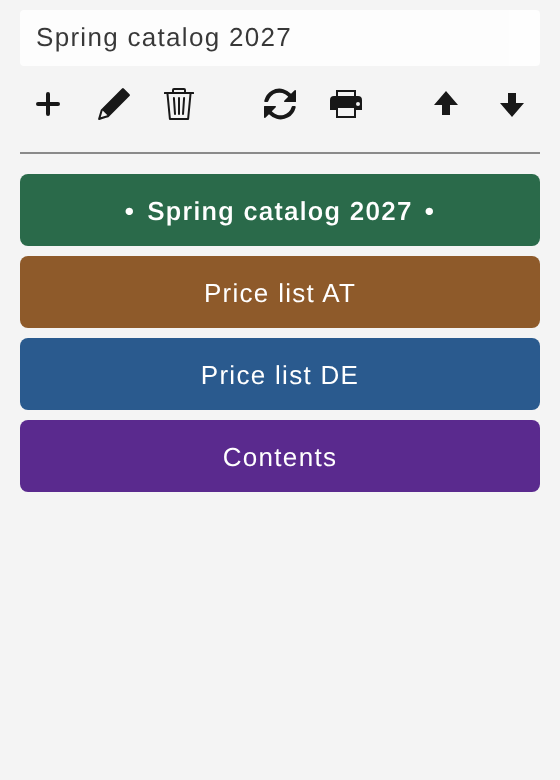
Expected result: One click restores the saved layer visibility. The versions stay in the document.
Common problems
- With no document, the list stays empty.
- Rapid clicks are run one after another so layer visibility does not get overwritten out of order.
- If the document name stored on the panel does not match the active document, the plugin reloads the configuration and shows Info with A new configuration has been loaded for the changed document (DE: “Es wurde eine neue Konfigurierung für das geänderte Dokument geladen”).
- Notice with A version named "…" already exists. (DE: “Eine Version mit dem Namen \"…\" existiert bereits.”) when the name is taken.
- When Update on document switch is on, switching documents closes an open print dialog and rebuilds the layer list if the data changed. A rebuild is skipped while an export is running.
06
Create and edit a layer version
Purpose: Set the name, button color, and layer visibility of a layer version.
- Choose Create version or Edit version.
- When creating, replace the placeholder Name of the new layer set (DE: “Name des neuen Layersets”). The field’s accessible name is Name.
- Set the color with the color picker. That color fills the button on the main panel.
- In the table, set each layer’s visibility with the checkbox. The change writes
visibleon the layer in Adobe InDesign immediately. The row also shows the layer color strip and the layer name. - The filter button cycles through:
- Show all layers (DE: “Alle Ebenen anzeigen”)
- Visible layers only (DE: “Nur sichtbare Ebenen”)
- Hidden layers only (DE: “Nur ausgeblendete Ebenen”)
- Sync visibility from Layers panel (DE: “Sichtbarkeit aus dem Ebenen-Panel übernehmen”) copies the current Adobe InDesign visibility into the checkboxes.
- Save (DE: “Speichern”) stores the name, the color, and the layers that are currently visible. Cancel (DE: “Abbrechen”) returns to the list without saving. Visibility already toggled in the document stays toggled, because the checkboxes write live.
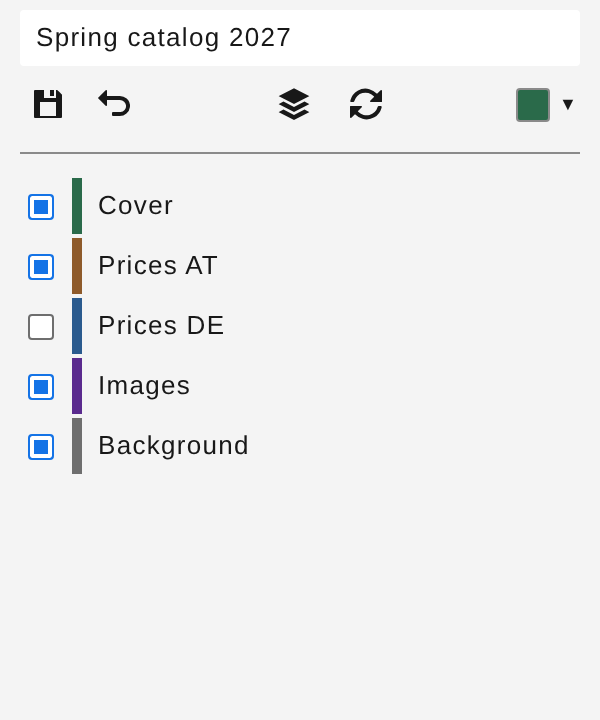
Expected result: The new or updated button appears in the list and is selected.
Common problems
- Empty name: Notice / Please enter a name. (DE: “Bitte einen Namen eingeben.”).
- Duplicate name: see chapter 5.
- Without a valid document, the layer table cannot be filled.
07
Print versions
Purpose: Store, per output, the PDF preset, layer version, pages, destination folder, and file name in the document, and send them to the shared print queue.
Data is stored on the document label d7designTools.druckVersionen.
- Choose Print version on the main panel. The dialog opens.
- The status line shows Sort: on the left (DE: “Sortieren:”) and the selected print-version name on the right. A “Configure” mode is not wired to this status line in this source; the visible label stays Sort:.
- Each row is a colored button. If Button info is set, the text is
file name / button info. Next to it are a pencil (Edit version) and a checkbox for export selection. The checkbox is stored on the document. - Tools, as tooltips:
- Create version (DE: “Version erstellen”)
- Duplicate version (DE: “Version duplizieren”) — requires a selected row
- Delete version (DE: “Version löschen”) — no extra confirmation
- List view (DE: “Listenansicht”)
- Create print versions from layer versions (DE: “Druckversionen aus Layerversionen anlegen”) — the wizard, chapter 9
- Add selected versions to the print queue (DE: “Ausgewählte Versionen in den Druckpool legen”)
- Show print queue (DE: “Druckpool anzeigen”)
- Move version up / Move version down
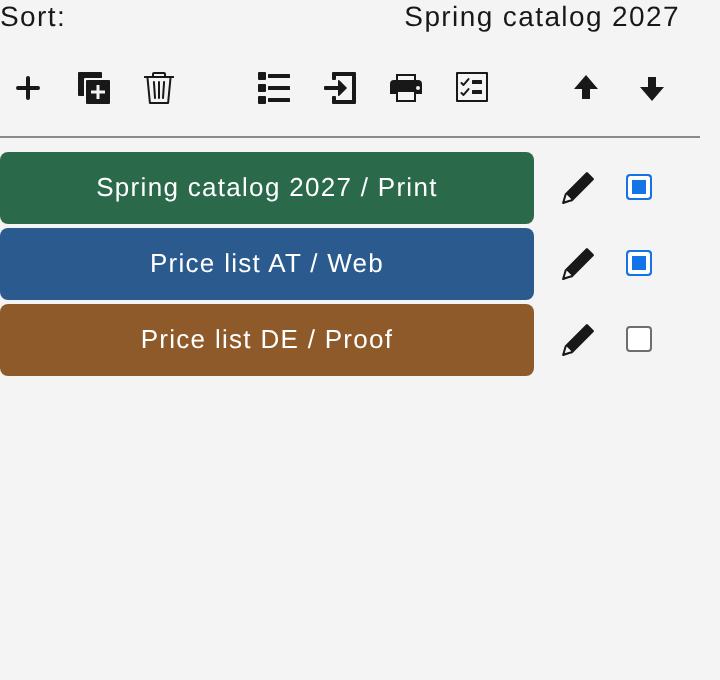
Clicking the row or the pencil requires a license and selects the row or opens the editor. Clicking the row does not export.
Expected result: Print versions belong to the document and can be selected again later.
Common problems
- If the document changes while the dialog is open, the list reloads, Info shows the sentence from chapter 5, and the action stops.
- Delete and duplicate do nothing when nothing is selected.
- While a handoff to the print queue is in progress, the editing buttons are disabled.
08
Create and edit a print version
Purpose: Enter every export setting for one print version.
Heading Create print version or Edit print version (DE: “Druckversion erstellen” / “Druckversion bearbeiten”).
| Label | DE | Input |
|---|---|---|
| File name | Datei-Name | Placeholder PDF file name / “Dateiname der PDF-Datei” |
| PDF Presets | PDF-Vorgaben | Adobe InDesign PDF export presets. Placeholder Select preset / “Vorgabe wählen” |
| Version | Version | Layer version. Placeholder Select layer version / “Layerversion wählen” |
| Location | Speicherort | Click the underlined label or the field to pick a folder. Placeholder Select folder / “Ordner wählen” |
| Page range | Seitenbereich | Placeholder e.g. 1-3 or 3,5,7 — leave empty for all pages / “z.B. 1-3 oder 3,5,7 - leer für alle Seiten” |
| Button info | Button-Info | Optional. Placeholder e.g. Cover (optional) / “z.B. Umschlag (optional)” |
| Color | Farbe | Checkbox Use layer color (DE: “Farbe übernehmen”) and a color picker |
| Export as | Exportieren als | Pages (DE: “Seiten”) or Spreads (DE: “Bögen”) |
| Create separate PDF files (DE: “Separate PDF-Dateien erstellen”) |
Cancel (DE: “Abbrechen”) and Save (DE: “Speichern”).
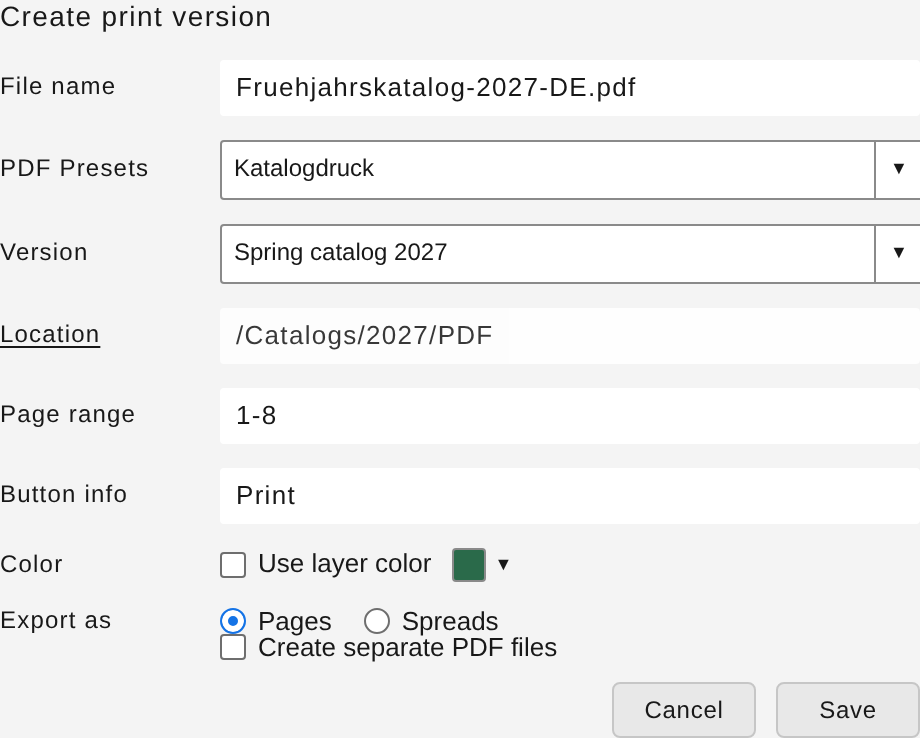
Expected result: The row appears in the print list. Save checks that two print versions would not write the same PDF file in the same folder.
Common problems (title Notice)
- Please enter a name.
- Please select a PDF preset.
- Please select a layer version.
- Please select a location (click on "Location").
- The page range is invalid. Allowed examples: 1, 1-3, 1,3,7-9. (DE: “Der Seitenbereich ist ungueltig. Erlaubte Beispiele: 1, 1-3, 1,3,7-9.”)
- The selected location does not exist or is not accessible.
- A print version with this name and location already exists.
- Collision: title PDF output collision (DE: “PDF-Ziel-Kollision”), body Multiple print versions would write the same PDF file in the same folder. Saving is not possible. Go back with Back (DE: “Zurück”).
- Collision check failed: …. Please try again or close the dialog.
An empty page range exports all pages. Single pages, hyphen ranges, and comma lists are allowed. A reversed range such as 5-2 is read as 2 through 5.
Export as Spreads sets spread export on a temporary copy of the PDF preset when the preset allows it. If the preset does not match and cannot be duplicated, a later export fails with The PDF preset could not be duplicated, and its pages/spreads setting does not match the print version.
Create separate PDF files writes one PDF per page or per spread.
09
Wizard: print versions from layer versions
Purpose: Create print versions for several layer versions at once, using the same export settings.
- In the print dialog, choose Create print versions from layer versions.
- The status line shows Select layer versions: (DE: “Layerversionen wählen:”). Click layer versions. Use Select all (DE: “Alle auswählen”) and Configure (DE: “Konfigurieren”) or Cancel (DE: “Abbrechen”).
- The status then shows Print settings: (DE: “Druck-Einstellungen:”). Fields:
- PDF preset (DE: “PDF-Vorgaben”), placeholder Select preset
- Location (DE: “Speicherort”), placeholder Select folder
- Export as (DE: “Exportieren als”)
- Color and Use layer color
- Create (DE: “Anlegen”) requires an export license and creates the print versions.
- The import icon’s tooltip becomes Back to print list (exit wizard) (DE: “Zurück zur Druckliste (Assistent beenden)”).
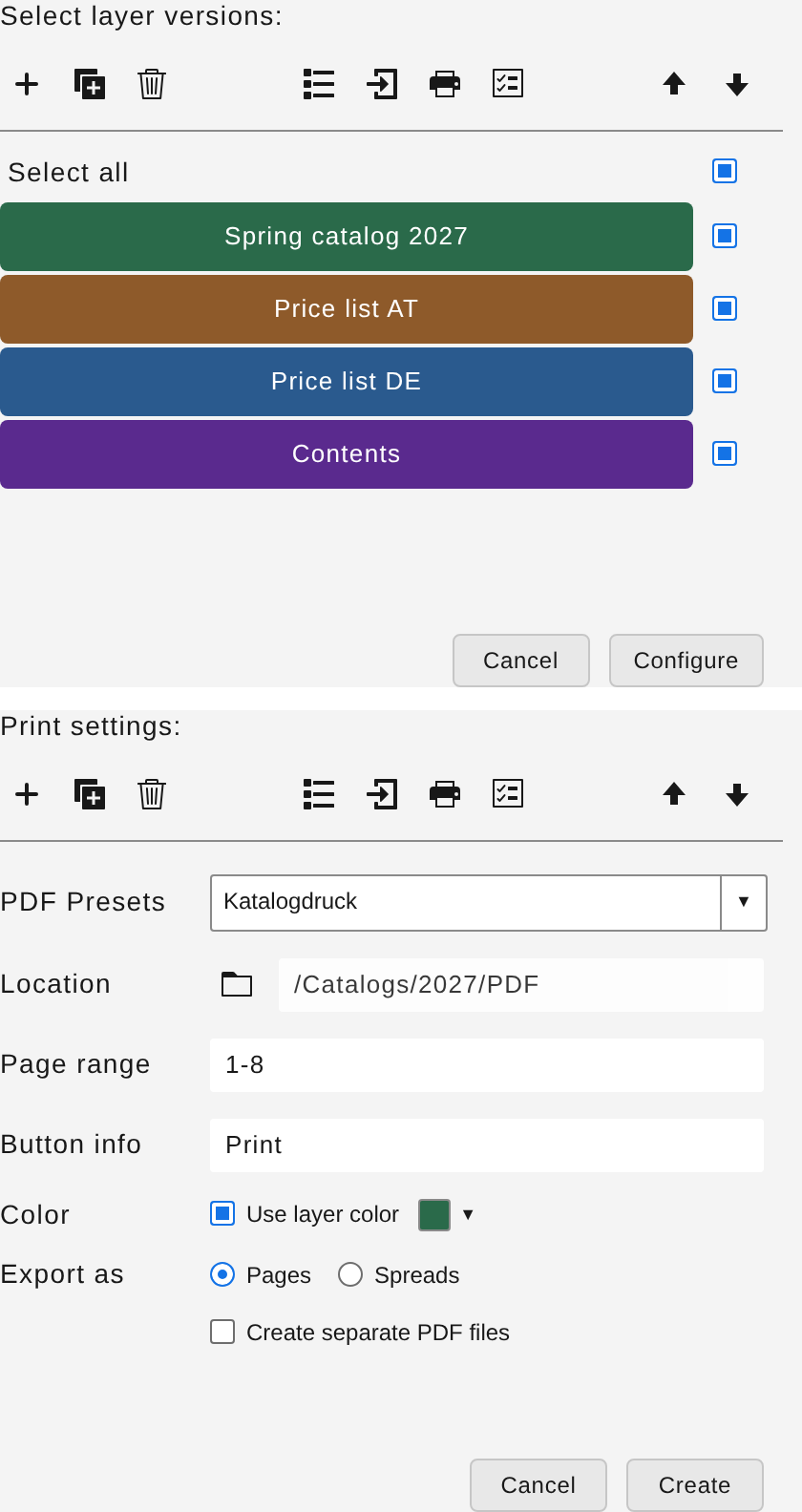
Expected result: Each selected layer version becomes a print version with the shared settings.
Common problems
- No layer versions are stored in this document.
- Please select at least one layer version.
- Please select a PDF preset.
- Please select an output folder.
- The selected folder is not available.
- Invalid page range, same as chapter 8, if a range is set.
10
Print versions list view
Purpose: Review many print versions in a table and edit the selection from the header row.
- Choose List view. The dialog title is Print versions list view (DE: “Druckversionen Listenansicht”).
- The hint under the heading is Select a row – edit values in the header row (DE: “Zeile auswählen – Werte in der Kopfzeile bearbeiten”).
- Columns: File name, PDF Presets, Version, Location, Page range, Button info, Exp. as (DE: “Exp. als”), Sep. PDF (DE: “Sep. PDF”).
- Empty dropdowns show No selection (DE: “keine Auswahl”). Mixed values in the selection show Mixed (DE: “Gemischt”). Paths: Versions with different paths (DE: “Versionen mit unterschiedlichen Pfaden”).
- The summary reads {selected} selected of {total} (DE: “{selected} ausgewählt von {total}”).
- Icons: new, duplicate, Delete selected rows (DE: “Markierte Zeilen löschen”), Move selection up one row / Move selection down one row (DE: “Auswahl eine Position nach oben” / “nach unten”).
- Cancel discards. Save writes the table back and runs the PDF output collision check again.
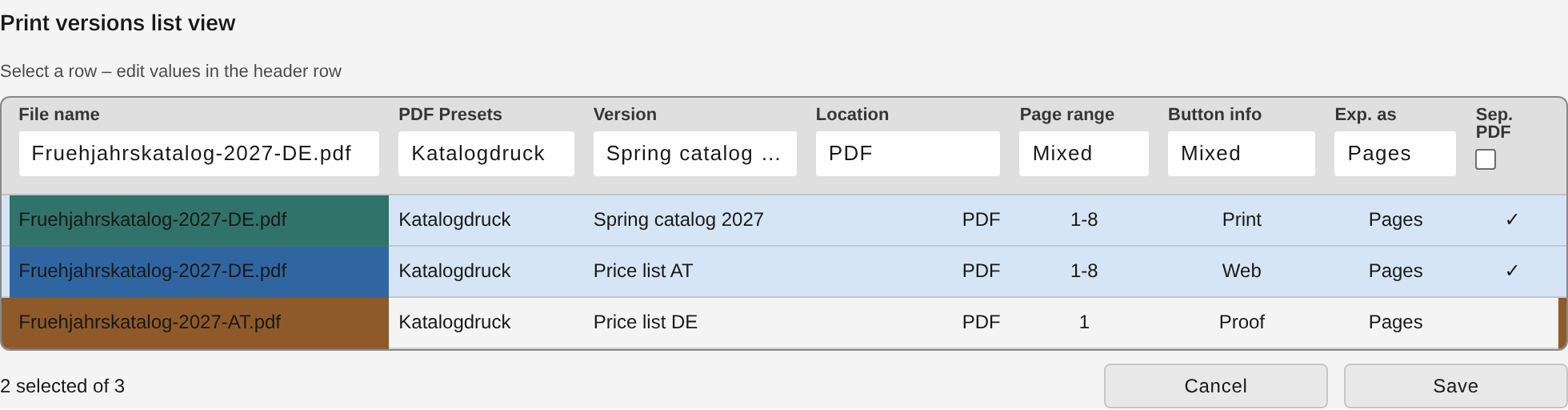
Expected result: After Save, the print dialog shows the new order and values.
Common problems
- The same required-field and collision messages as in chapter 8.
- The folder picker for Location applies to the selected rows.
11
Print queue and PDF export
Purpose: Place the selected print versions into a shared, persistent queue and export them one after another as PDFs.
The queue remains when the window is closed. After Adobe InDesign starts with unfinished jobs, the queue stays paused until it is started by hand.
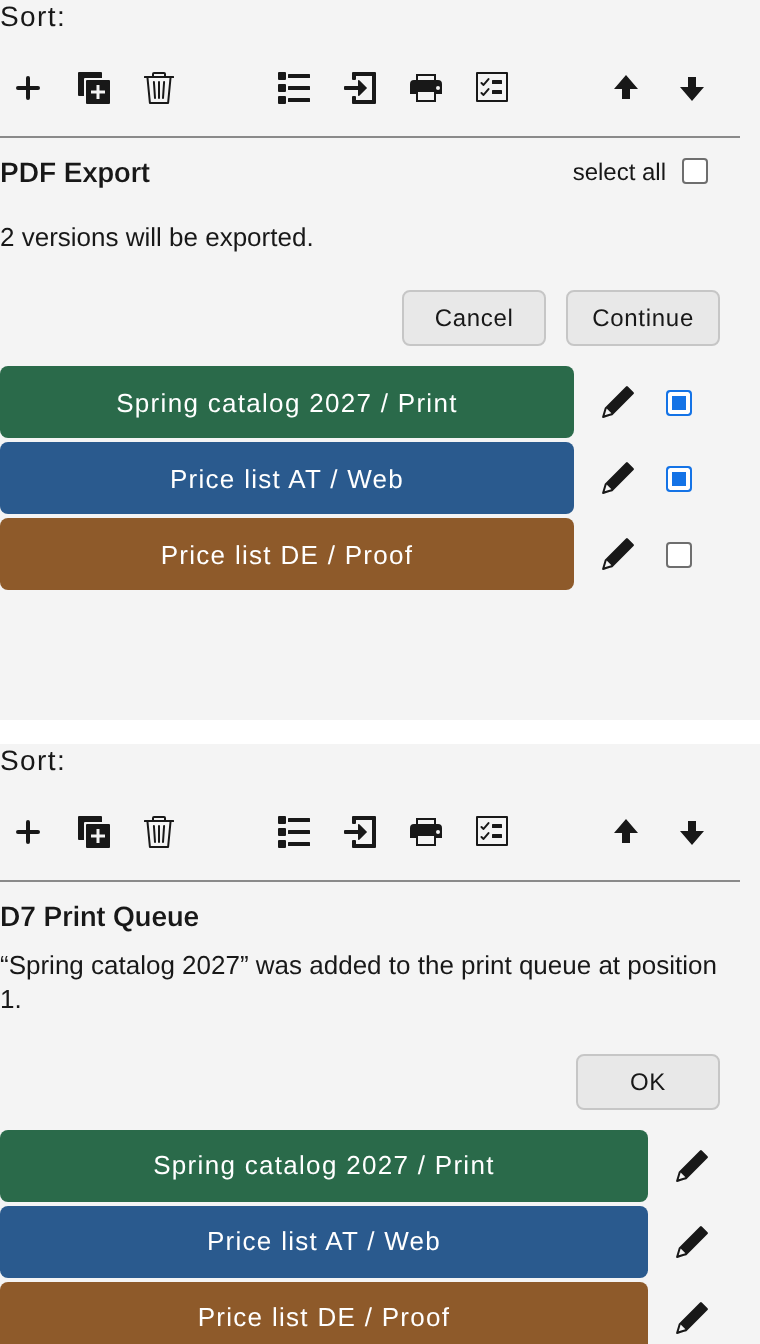
- In the print dialog, mark rows with the checkboxes. A selection panel also appears, labeled select all (DE: “alles auswählen”), with the heading PDF Export (DE: “PDF-Export”) and the button Continue (DE: “Fortfahren”). The counter reads {n} version(s) will be exported. (DE: “{n} Version(en) sollen exportiert werden.”).
- Continue adds one job per print version to the shared queue. An open job that already matches the same document and print version is not duplicated; its settings can be updated.
- The banner title is D7 Print Queue (DE: “D7 Druckpool”). The body is one of:
- “{name}” was added to the print queue at position {position}.
- “{name}” was queued at position {position}. The print queue is paused; open D7 Print Queue and choose Start/Resume.
- matching sentences for several versions, updates, and jobs that already exist (
printPool.enqueuedMany,printPool.enqueuedSome,printPool.updatedOne,printPool.updatedMany,printPool.alreadyQueued,printPool.alreadyQueuedMany).
- OK closes the banner.
- Show print queue, or the flyout item Print Queue, opens the queue window.
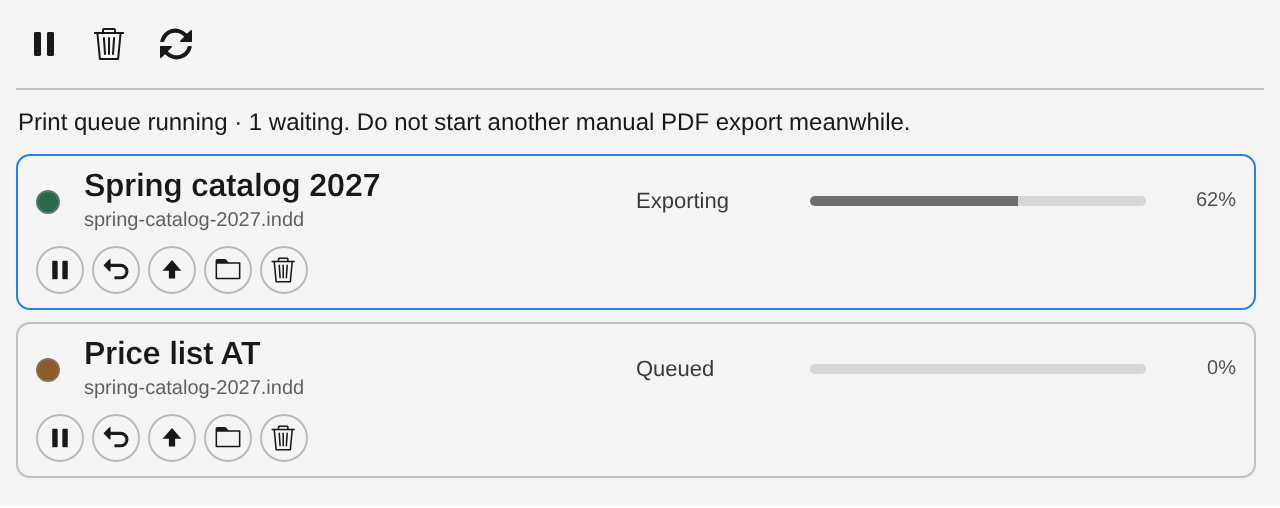
In the queue window:
- Summary, depending on state:
- Paused after starting InDesign. {n} queued jobs require a manual start.
- Print queue paused · {n} waiting.
- Pause requested. The current job will finish, then no further job will start.
- Print queue running · {n} waiting. Do not start another manual PDF export meanwhile.
- Print queue ready · {n} waiting.
- Empty: The print queue is empty.
- Toolbar: Start/Resume, or Pause queue while the queue is running (DE: “Starten/Fortsetzen” / “Pool pausieren”), Clear finished (DE: “Fertige entfernen”), Refresh (DE: “Aktualisieren”).
- Each job shows the document name, version name, color dot, state, and a progress bar with a percent.
- States: Queued, Paused, Preparing, Exporting, Cancelling, Completed, Completed with warnings, Failed, Action required, Cancelled, Interrupted, Unknown (DE: “Wartet”, “Pausiert”, “Vorbereitung”, “Exportiert”, “Abbruch läuft”, “Fertig”, “Fertig mit Warnungen”, “Fehler”, “Aktion erforderlich”, “Abgebrochen”, “Unterbrochen”, “Unbekannt”).
- Job actions, when the state allows them: Pause job / Resume job, Cancel job, Move job up / Move job down, Retry, Output folder, Remove. Remove asks Remove job “{name}” from the print queue? with Delete.
- When links need repair: Open working copy and repair links (DE: “Arbeitskopie öffnen und Verknüpfungen reparieren”).
Export applies the layer version, uses the chosen PDF preset, and writes through Adobe InDesign background export. Progress strings in the export module (when the progress list is shown) include Preparing…, Exporting..., Writing {name}… {percent}%, {name} is waiting for InDesign…, Cancelling…, Export completed, Done: {n} page(s) exported. Clicking a finished row in that list opens the destination folder (Open location in Explorer, DE: “Speicherort im Explorer öffnen”).
Expected result: PDF files land in the saved Location under File name. Separate files are one per page or spread. The queue processes jobs from other documents in order as well.
Common problems
- Nothing selected and an empty list: Please select at least one version in the export dialog.
- The job could not be queued: …
- Layer version missing / Layer version not found: …
- PDF preset missing / PDF preset not found: …
- Target folder not found: …
- The active document was switched or closed – export aborted.
- Could not overwrite PDF file "…"
- The InDesign background export could not be started: …, or it was cancelled or failed.
- The exported PDF file "…" is empty or unreadable
- Failed versions: {n} version(s) with errors – see log
- The queue waits while another Adobe InDesign background export is active. The stored status sentence is the German text
Wartet auf einen anderen InDesign-Hintergrundexport(not loaded from the language files). - The strings Stop queue and Cancel current exist in the language file and are not wired to the queue toolbar. Pause and cancel use Pause queue and Cancel job.
12
Synchronizing PDF presets (.joboptions)
New
Purpose: Compare, copy, and optionally clean PDF export presets stored as .joboptions files between the local Adobe folder and a folder you choose.
12.1
Where the files are
Locally, the plugin resolves the folder Adobe PDF/Settings. It takes the plugin data-folder path, splits on the path segment Adobe, and appends Adobe PDF/Settings. Help text calls this Local: Adobe PDF/Settings (DE: “Lokal: Adobe PDF/Settings”). A built-in test exception applies only when the chosen shared folder path ends with …/testdateien/share. In normal use the local folder is Adobe PDF/Settings.
The second location is the Shared folder (DE: “Geteilter Ordner”). You choose it (a network folder or any other shared folder). The absolute path is stored in d7versions-settings.json in the plugin data folder.
Only .joboptions files directly inside those two folders are read. Subfolders are not scanned.
Copies are binary and overwrite. After a copy, the plugin records both modification times in d7versions-pdf-presets-ledger.json. Two times count as the same when they are at most 5 minutes apart.
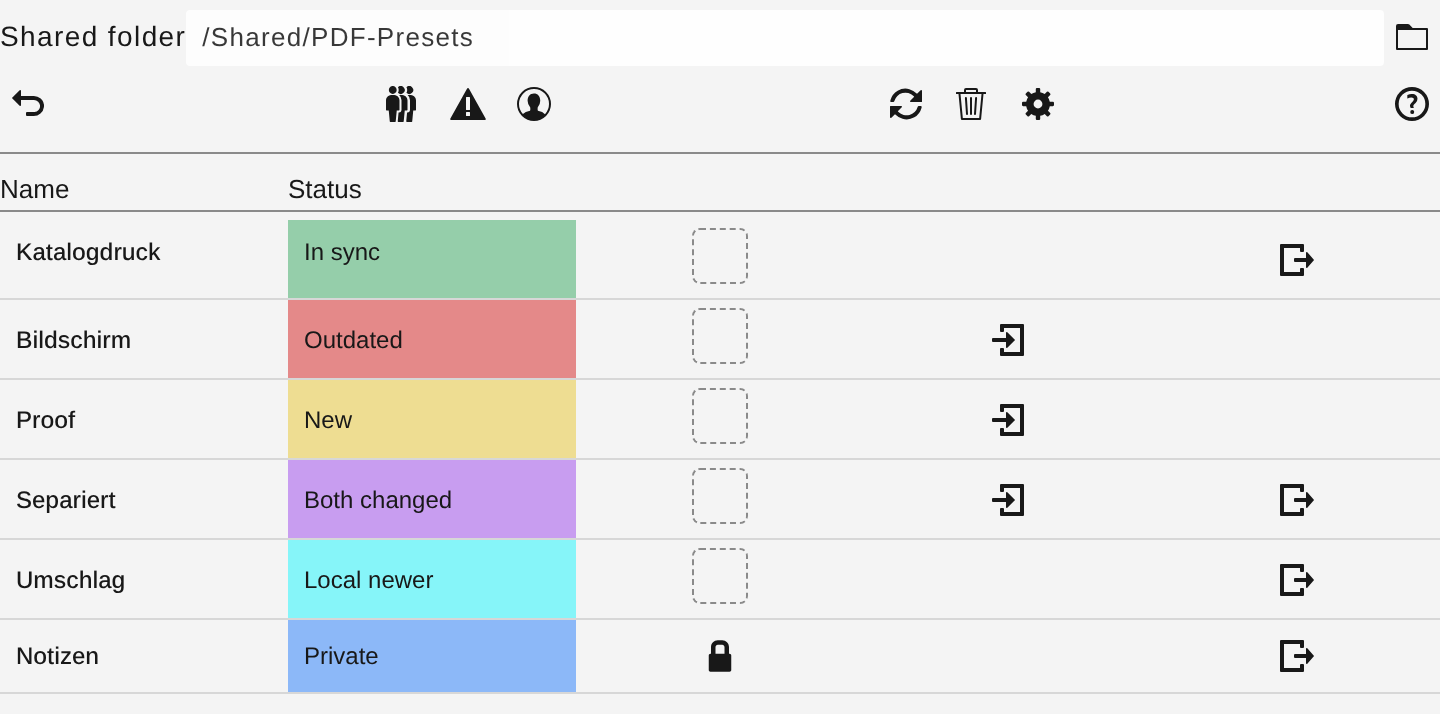
12.2
Open the dialog
- Flyout Settings opens Settings.
- In the PDF presets block (DE: “PDF-Vorgaben”), choose the icon whose tooltip is Settings (DE: “Einstellungen”). Current setting values are saved first.
- The same dialog can also open by itself when Query on startup is on, a path is saved, Run automatically is off, and the comparison finds at least one unlocked difference (see 12.6).
Back (DE: “Zurück”) closes the dialog. Settings inside the dialog closes it and shows the settings panel again.
12.3
Path and tools
- Next to Shared folder the path is read-only. While empty, the placeholder is Choose a shared folder for PDF presets (DE: “Wähle einen geteilten Ordner für PDF-Vorgaben”).
- Folder icon, tooltip Choose shared folder (DE: “Geteilten Ordner wählen”). The dialog closes briefly, the folder picker opens, the path is saved immediately, and the dialog returns with the same filter.
- Other icons, as tooltips:
- Back
- Show all (DE: “Alle anzeigen”) — filter group Filter PDF presets
- Out of sync (DE: “Warnung”) — rows that are not In sync and not Private
- Personal (DE: “Persönliche”) — Private only (local only)
- Refresh (DE: “Aktualisieren”) — rereads both folders and redraws the table. It does not copy or delete
.joboptions. - Clean up (DE: “Bereinigen”)
- Settings
- Help (DE: “Hilfe”)
On first open, the Show all filter is active (the active filter button has a light fill).

12.4
Table, status, colors
Column headers: Name, Status. The other headers are icons with accessible names Protected (DE: “Geschützt”), Import, and Export. Name shows the file name without the .joboptions extension.
The status cell is color-filled. A tooltip shows Local: {time} · Shared: {time} (DE: “Lokal: {Zeit} · Geteilt: {Zeit}”). A missing date is an em dash.
| Status | DE | Meaning | Cell color | Row action |
|---|---|---|---|---|
| In sync | Synchron | Both files match the last comparison, or the times are inside the 5-minute buffer and there is no ledger entry yet | Green | none |
| Outdated | Veraltet | The shared file is newer | Red | Import (shared to local, overwriting locally) |
| New | Neu | Shared folder only | Yellow | Import |
| Local newer | Lokal verändert | The local file is newer | Cyan | Import and Export |
| Private | Privat | Local only | Blue | Export (local into the shared folder) |
| Both changed | Beide verändert | Both sides changed since the last plugin comparison | Purple | Import and Export |
Sort order, top to bottom: New, Outdated, Both changed, Local newer, In sync, Private, then by name.
Help repeats the same short texts, for example Shared only. Import copies the file locally. and The shared copy is newer. Import overwrites locally. The help title is PDF presets, section Status and colors.
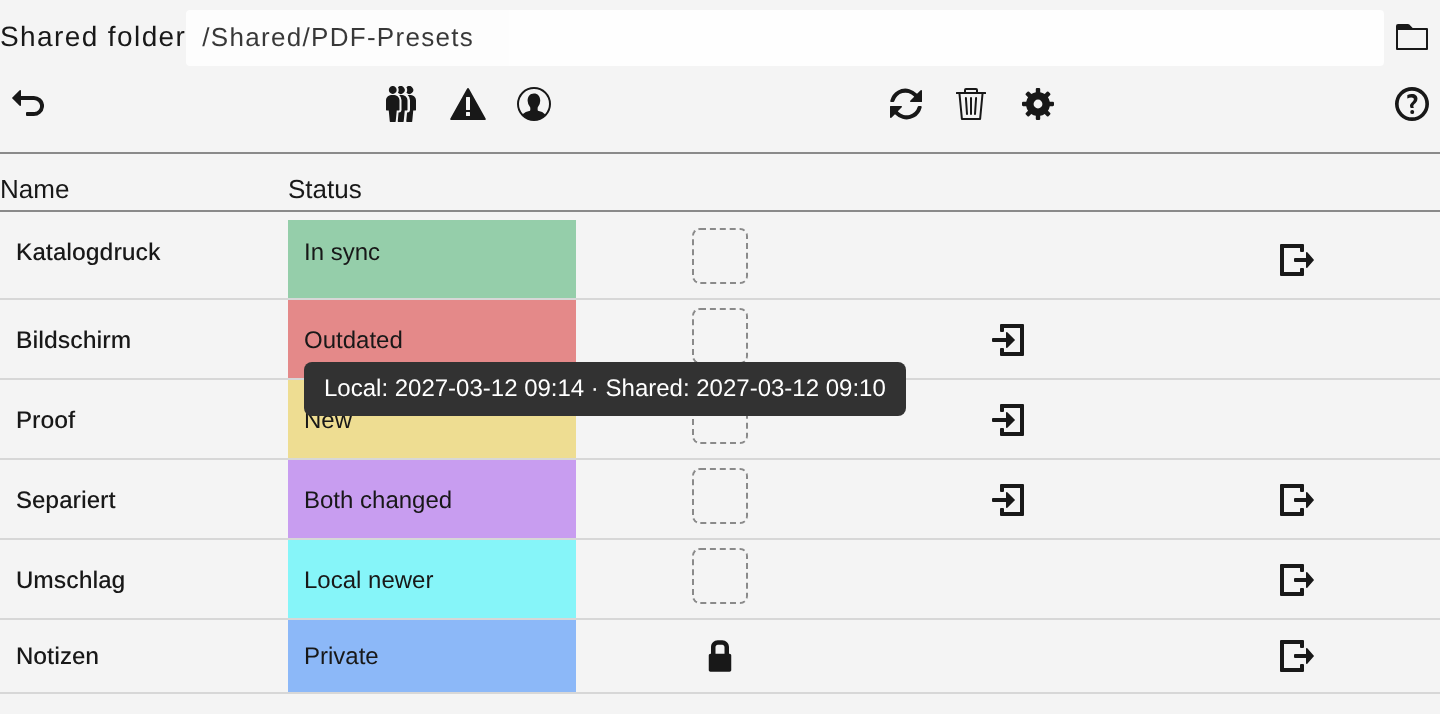
Import is hidden on a locked row. If an import still hits a lock, the dialog shows This preset is locked and will not be overwritten from the shared folder. (DE: “Diese Vorgabe ist gesperrt und wird nicht aus dem geteilten Ordner überschrieben.”). Export stays available while a row is locked.
12.5
Protection, Import all, export several, Clean up
Protection. The row lock tooltip is Mark as protected or Remove protection (DE: “Als geschützt markieren” / “Schutz aufheben”). A local-only file (Private) is protected the first time it is seen. Unlocking a Private row allows cleanup to delete it later. The lock in the column header locks or unlocks every row currently shown (Lock all presets shown in the table / Unlock all presets shown in the table).
Import all. Icon in the Import column header, tooltip Import all (DE: “Import alle”).
- With no path: Error dialog with Choose a shared folder for PDF presets.
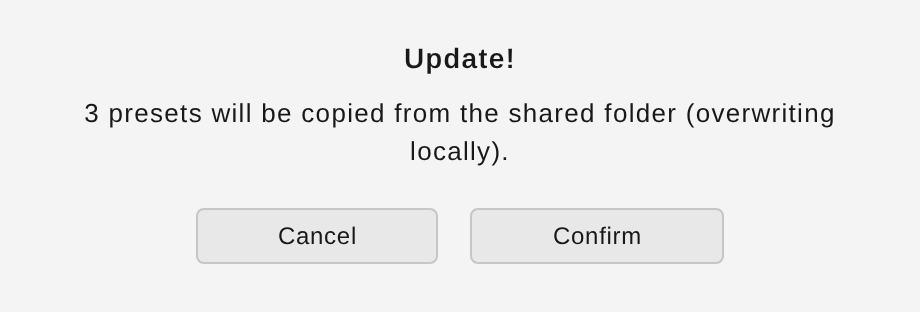
- Otherwise a confirmation titled Update! (DE: “Aktualisieren!”) and One preset will be copied from the shared folder (overwriting locally). or {count} presets will be copied from the shared folder (overwriting locally).
- Confirm (DE: “Bestätigen”) copies every unlocked
.joboptionsfile from the shared folder intoAdobe PDF/Settings, overwriting locally. Cancel stops. - If Clean up when executing is saved in Settings, the same run then deletes local
.joboptionsfiles that are not in the shared folder, except protected files. - Nothing to do: No presets to import: all locked or no .joboptions in the shared folder.
The number in the confirmation first counts rows that show an Import icon. If that count is zero, it counts every unlocked file in the shared folder. The run itself always copies every unlocked file from the shared folder, not only the rows that show an icon.
Export several. Icon in the Export column header.
- The first tooltip is Export multiple: choose presets (DE: “Mehrere exportieren: Vorgaben wählen”). The Export column shows checkboxes, checked by default, only for rows that have an export action.
- Click again: at least one row must be selected, or Select at least one preset in the Export column.
- Confirmation Attention! (DE: “Achtung!”): One preset will be overwritten in the shared folder. or {count} presets will be overwritten in the shared folder.
- Confirm writes the selected local files into the shared folder.
Clean up.
- Tooltip Select and delete local presets (DE: “Lokale Vorgaben wählen und löschen”). Checkboxes appear for local files. Locked rows are disabled and unchecked.
- A second click with nothing selected: Select at least one preset allowed for deletion (Export column).
- Confirmation Warning — clean up! (DE: “Achtung - Bereinigen!”), for example Do you really want to delete one local PDF preset? or the variants for several files or for ALL local presets when every deletable box is checked. Added sentence: This removes the local files only. (DE: “Damit werden die lokalen gelöscht.”).
- Confirm deletes local files only. The shared folder is left as it is.
The Out of sync filter with no differences shows All PDF presets are up to date (DE: “Alle PDF-Vorgaben aktuell”) instead of the table.
Expected result: After import, the preset appears immediately in Adobe InDesign’s PDF presets. No restart is required. After export, the same file is in the shared folder. Status becomes In sync once the new times are within the 5-minute buffer of the recorded comparison.
Common problems
- Empty path or a folder that cannot be opened: Error and the placeholder, or an error line above the table (
Ungültiger Plugin-Pfad – enthält kein Adobe-Verzeichnis.whenAdobe PDF/Settingscannot be derived from the plugin path). - Locked files are skipped by Import all and by automatic cleanup.
- Refresh does not clean up, even though the Clean up when executing tooltip says it does. Cleanup runs on Import all and on the automatic run, and only when that option is saved.
- If both paths point at the same file, the console records a warning. That is not a comparison of two locations.
- Changes newer than the 5-minute buffer can still show as In sync when the difference is smaller than 5 minutes.
12.6
Automatic query
The switches are under Settings in the PDF presets block. They apply after Save (the Settings icon in that block also saves them before the dialog opens).
| Switch | Default when no settings file exists yet | Effect |
|---|---|---|
| Query on startup (DE: “Bei Start abfragen”) | on | Once per panel session, after the panel is visible and a path is saved |
| Query interval (h) (DE: “Abfrage-Intervall (h)”) | on, field 3 | Every 60 seconds the plugin checks whether that many hours have passed since the last successful run. Allowed values are 1 through 8760; otherwise 3. The hours field can be edited only while the switch is on. |
| Run automatically (DE: “Automatisch Ausführen”) | off | See below |
| Clean up when executing (DE: “Beim Ausführen bereinigen”) | off | After copying, delete local files that are missing from the shared folder, except protected ones |
Run automatically off: the plugin only compares and does not copy files. If at least one unlocked row matches the Out of sync filter, the dialog opens. The tooltip Runs the configured action automatically after the query (details to follow). is older than the behavior. The behavior is the full import used by Import all, including optional cleanup.
Run automatically on: the same import as Import all (every unlocked file from the shared folder, then optional cleanup). The dialog does not open for that run.
With no saved path, the startup query and the interval do nothing.
Common problems
- The options are set but were not written with Save. The last saved values remain in effect.
- The Clean up when executing tooltip also names Refresh in the dialog. Refresh does not delete files (chapter 12.3).
13
Settings, default configuration, Info
Purpose: Save language, document-switch behavior, the PDF query, an optional shared layer-version file, and view the license.
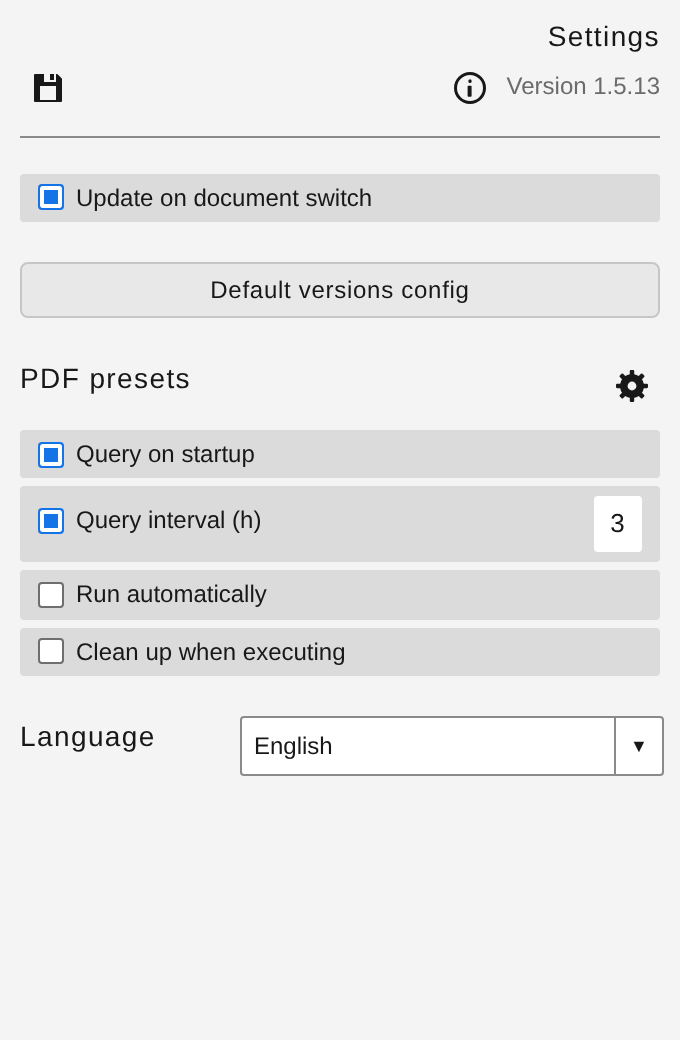
Flyout Settings. Heading Settings (DE: “Einstellungen”). Next to it, Version plus the manifest version, at this source 1.5.1, and the icon Plug-in and license information (DE: “Plugin- und Lizenzinformationen”).
- Update on document switch (DE: “Bei Dokumentwechsel aktualisieren”). Tooltip: When enabled, the plugin refreshes when you switch to another active document.
- Default versions config (DE: “Standard-Versionen-Konfig”).
- PDF presets block, as in chapter 12.
- Language (DE: “Sprache”): Automatic (from InDesign), German (DE: “Deutsch”), English (DE: “Englisch”).
- Save (tooltip Save, DE: “Speichern”) writes the values and returns to the layer list.
- Back (DE: “Zurück”) leaves this view without writing the latest unsaved main values and returns to the layer list. On a subview the tooltip is Back to settings (DE: “Zurück zu den Einstellungen”) and returns there without saving the main values. The default-path view has its own Save, which writes only those paths and stays on that view.
Default versions config
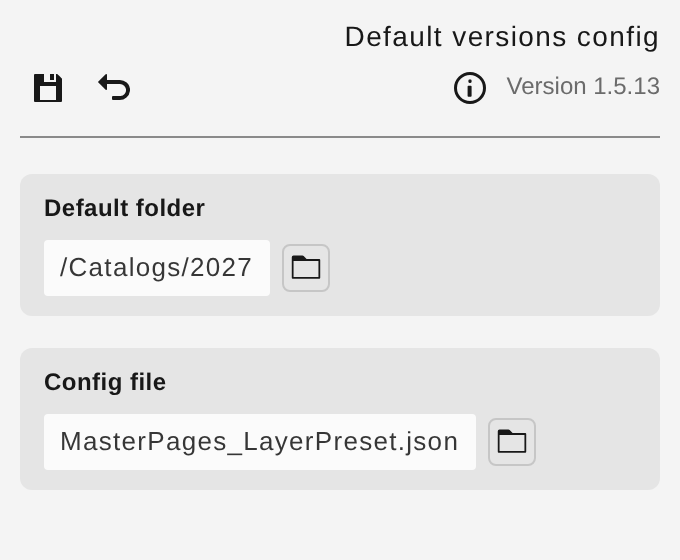
Heading Default versions config.
- Default folder (DE: “Standardordner”). Tooltip: Root folder of catalog page documents (e.g. …\\10_Katalogseiten). When an .indd file is saved under this path, the config file is loaded automatically — not the JSON file’s folder. Folder icon Pick folder (DE: “Ordner wählen”).
- Config file (DE: “Konfig-Datei”). Tooltip: JSON file containing the layer version presets (e.g. Stammseiten_LayerPreSet.json). File icon Pick file (DE: “Datei wählen”), JSON only.
When the document’s saved path is under the default folder, the panel loads layer versions from that JSON file instead of from the document label. The file is read directly. If that fails, a local copy previously read with the file button is used. The hint is The path was saved. The file is loaded directly. If that fails, a local copy previously read via the file button is used.
If both fields are empty in the settings file, the form shows built-in path defaults from module/versionen.js. Those are machine-specific paths, not a general product default. For your own use, set both fields and choose Save.
Common problems
- An unsaved document has no path. The preset file is then not applied; the console notes the missing document path.
- If the document path and the default folder do not match, layer versions come from the document label.
- The built-in path default can point nowhere on another machine.
Info
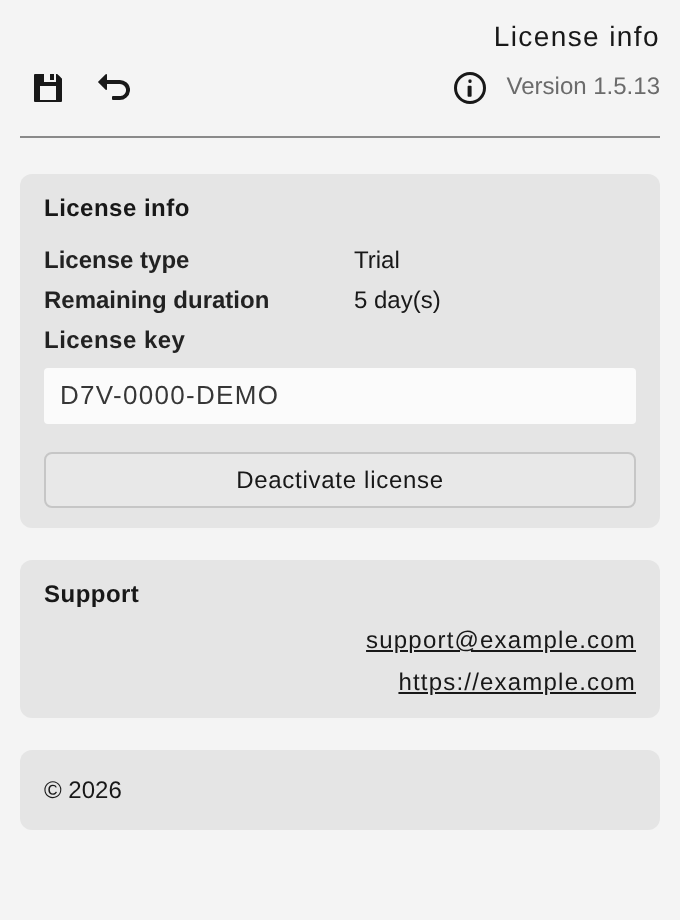
Heading Info (DE: “Info”).
- License info (DE: “Lizenz-Info”): License type, Remaining duration, License key (read-only).
- Type comes from the cache; otherwise Unknown, or the text
demowhen the key prefix isD7V-DEMO-. Duration: {n} day(s) (DE: “{n} Tag(e)”), Unlimited (DE: “Unbegrenzt”), or Not activated (DE: “Nicht aktiviert”). - Deactivate license (DE: “Lizenz abmelden”). The question is Do you want to deactivate this installation from the license server? with Deactivate (DE: “Abmelden”). Success: The license was deactivated successfully. Failure: Deactivation failed. or the server message.
- Support block (DE: “Support”): a clickable mail address and a clickable website address, then a copyright line. The addresses and the copyright wording come from the plugin and are not repeated here.
14
Export and import versions
Purpose: Hand off the active document’s layer versions and print versions as JSON.
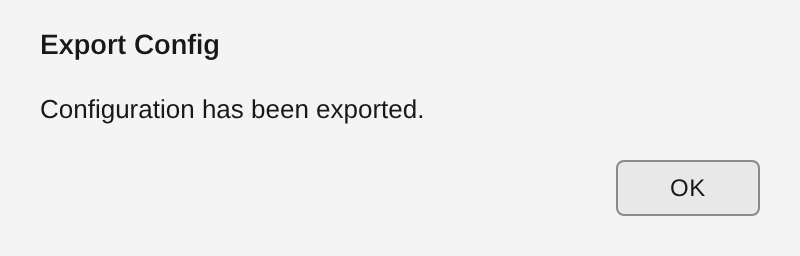
Flyout Export Versions opens a save dialog. Suggested name: the document name with a .json extension, otherwise config.json. Success: Export Config / Configuration has been exported. (DE: “Konfiguration wurde exportiert.”). The file contains the two document labels when they are set.
Flyout Import Versions opens a file dialog and writes the labels onto the active document. Success: Import Config / Configuration imported ({n} label(s)). (DE: “Konfiguration importiert ({n} Label(s)).”). An older layer key in the file is applied when the new key is absent from the file.
Delete Print Versions asks Do you really want to delete all print versions? (title Delete Print Versions, button Delete). If the print dialog was open, it is opened again afterward.
Delete Layer Versions asks Do you really want to delete all layer versions? (title Delete Layer Versions, button Delete).
Common problems
- No valid label data found in the file.
- The import file contains invalid data (ebenenSets). Import was aborted.
- Export failed: … / Import failed: …
- The German confirmation titles use the wording “Druckversions” / “Layerversions” as stored in the interface.
15
Log
Purpose: Read, filter, and save messages from the session.
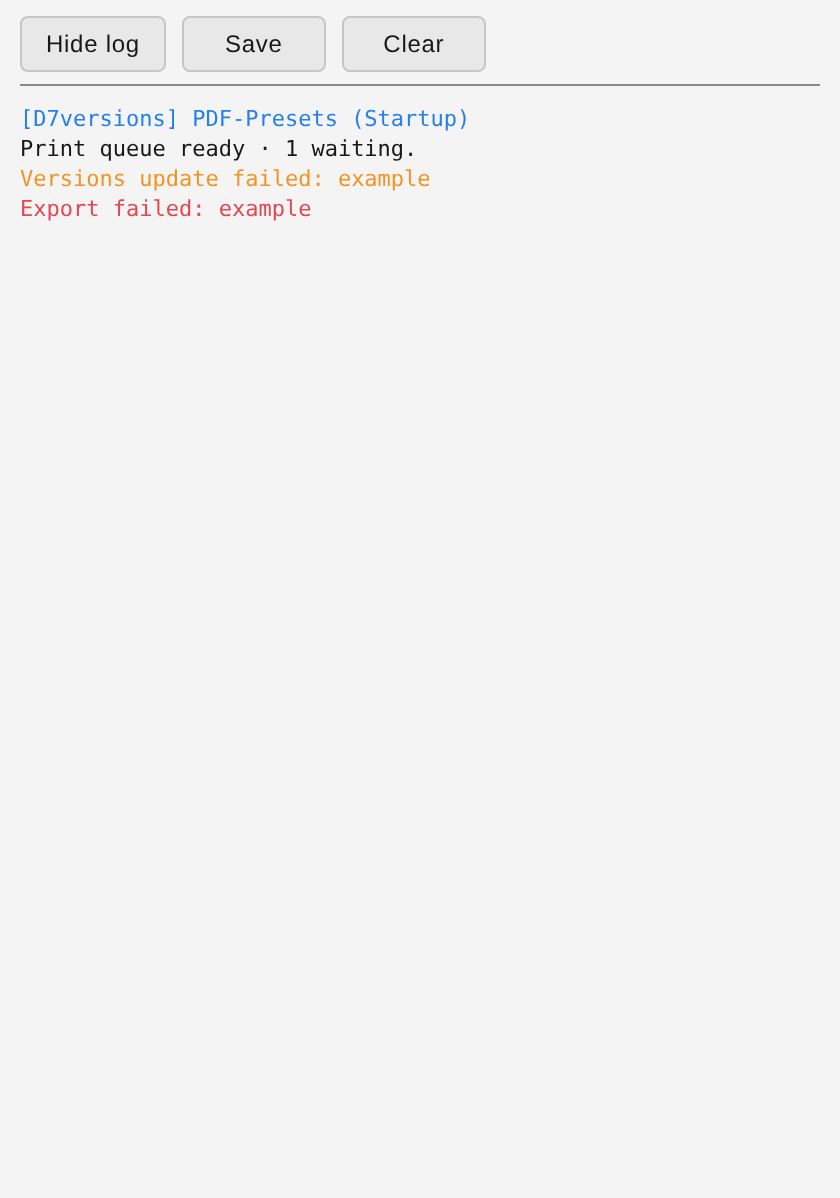
Flyout Log opens the log window. Buttons come from the language file:
- Log off / Log on (DE: “Log aus” / “Log ein”)
- Save (DE: “Speichern”) — saves the text; the suggested file name starts with
psversions-log - Clear (DE: “Loeschen”)
On a successful save: Log saved. (DE: “Log gespeichert.”).
Common problems
- The window shows runtime messages, including internal warnings. An entry there is not automatically a message you have to confirm.